
Accepting a Virtual Card Payment
Welcome to our virtual card ePayments system for qualified vendors and medical service providers! This guide will walk you through the process of receiving and accepting your workers' compensation vendor invoice payments. Please follow the steps below to gain access to your funds instantly.
1. Enroll in ePayments
Before receiving ePayments, you must enroll in our system. Follow the steps in this article to complete your enrollment.
2. Receiving Payment Notifications
After enrolling in ePayments, you will receive email notifications from Carepay for individual invoice payments. Here’s what to expect:
-
Payment Notification Email:
-
You will receive an email at the address you used during enrollment each time a payment is made.
-
The email subject will be "Payment Advice"
- The sender of the email is: donotreply@e-payable.com
-
Payment Notification Email:
-
You will receive an email at the address you used during enrollment each time a payment is made.
-
The email subject will be "Payment Advice"
Email notifications will be sent from donotreply@e-payable.com. If you don’t receive a payment notification as expected, please check this help article for troubleshooting tips to ensure proper delivery.
-
The email will contain details about the payment, including the invoice number, amount, and claim number. Here is an example card ePayment email:

2. Secure Link to EOB/EOR for Medical Providers:
-
The email will also include a secure link for medical service providers to view the Explanation of Benefits (EOB) or Explanation of Review (EOR) corresponding to the payment.
View this article for more information on accessing EOB/EORs.
3. Processing Your Payments:
-
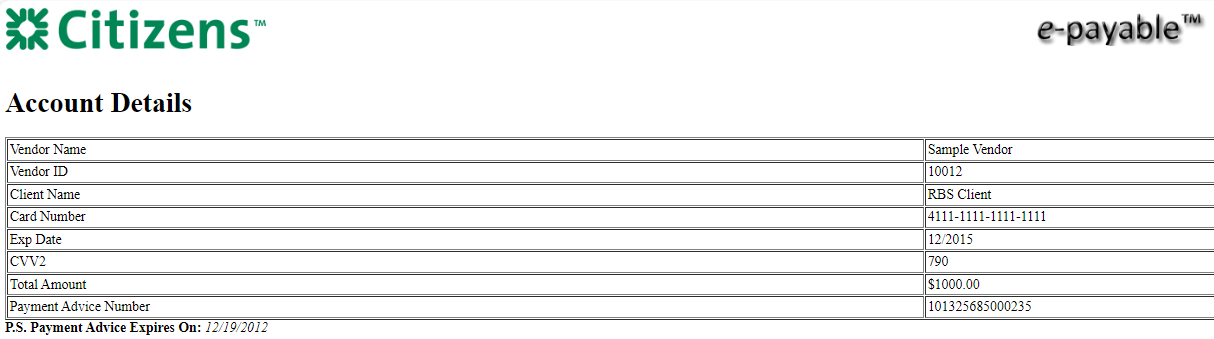
Clicking the "Click here to obtain credit card details" in the payment email, also shown above, you will be directed to a webpage with your credit card details to process on your side.
Important Note: The card provided can only be processed through your company's merchant account, is for one-time use, and will only work for the invoice amount.
Here's an example of the card details page that you will utilize to process your invoice payment:
6. Receiving Funds in Your Bank Account
Once you process the card invoice payment, the funds will be transferred to the bank account you designated with your account according to the terms of your agreement with your merchant processor.
If a transaction is denied, please call 888-409-8662 and select option 3.
We will automatically cancel your payment if you do not accept it within 30 business days of the notification. Please get in touch with us at 888-509-8662 or email support@getcarepay.com to reissue the payment.
Additional Tips:
-
Keep Your Contact Information Updated: Ensure the email address you've supplied Carepay for your ePayments is always up to date to avoid payment delays.
-
Check Your Spam/Junk Folder: If you don’t see your payment notification email, check your spam or junk folder and mark the sender as safe to ensure future emails land in your inbox.
If you have any questions or need more help, please don't hesitate to get in touch with our support team at support@getcarepay.com or start a chat session with us by clicking the green button in the bottom right corner of your screen.